
Customizing Layouts
You can customize both your Dashboard and your sidebar layouts by adding, removing, and reordering items.
Customizing the Dashboard
On the Dashboard, click ** Customize**.
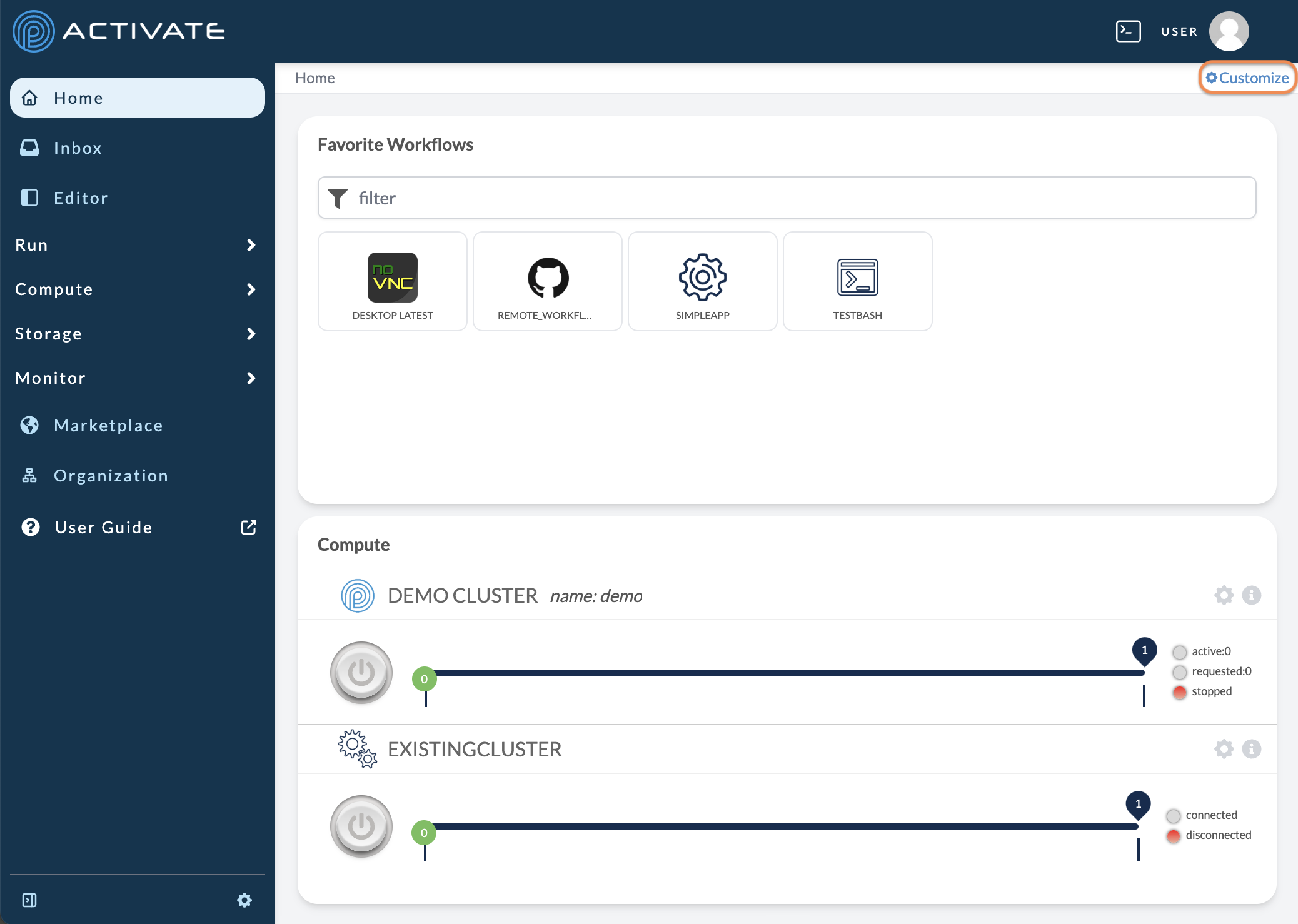
Move Modules
Move your cursor over a module until it becomes the directional arrows icon. Click to drag and drop a module anywhere in the grid.
Resize Modules
Move your cursor to the bottom-right corner of a module until it becomes the diagonal arrow icon. Click, drag, and drop the corner to resize the module.
Rename Modules
Click the edit icon.
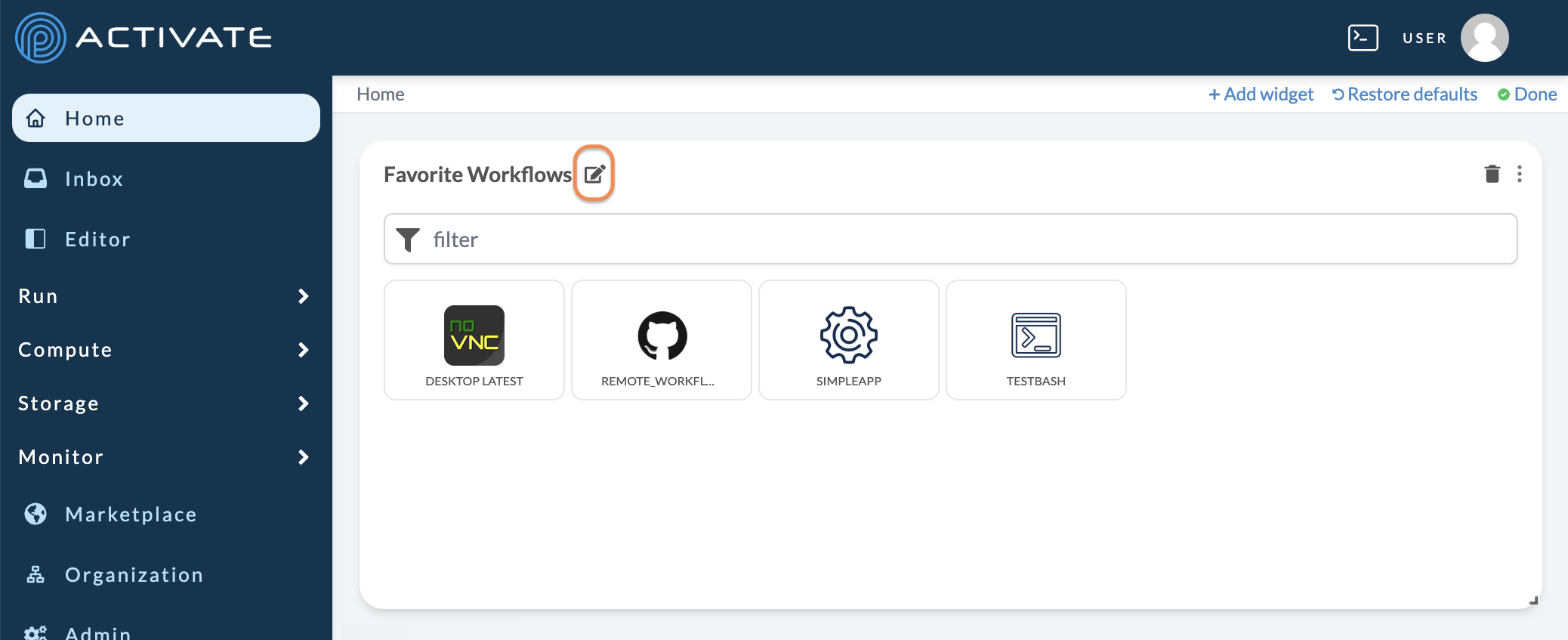
Enter a new name for the module. Click the checkmark icon.
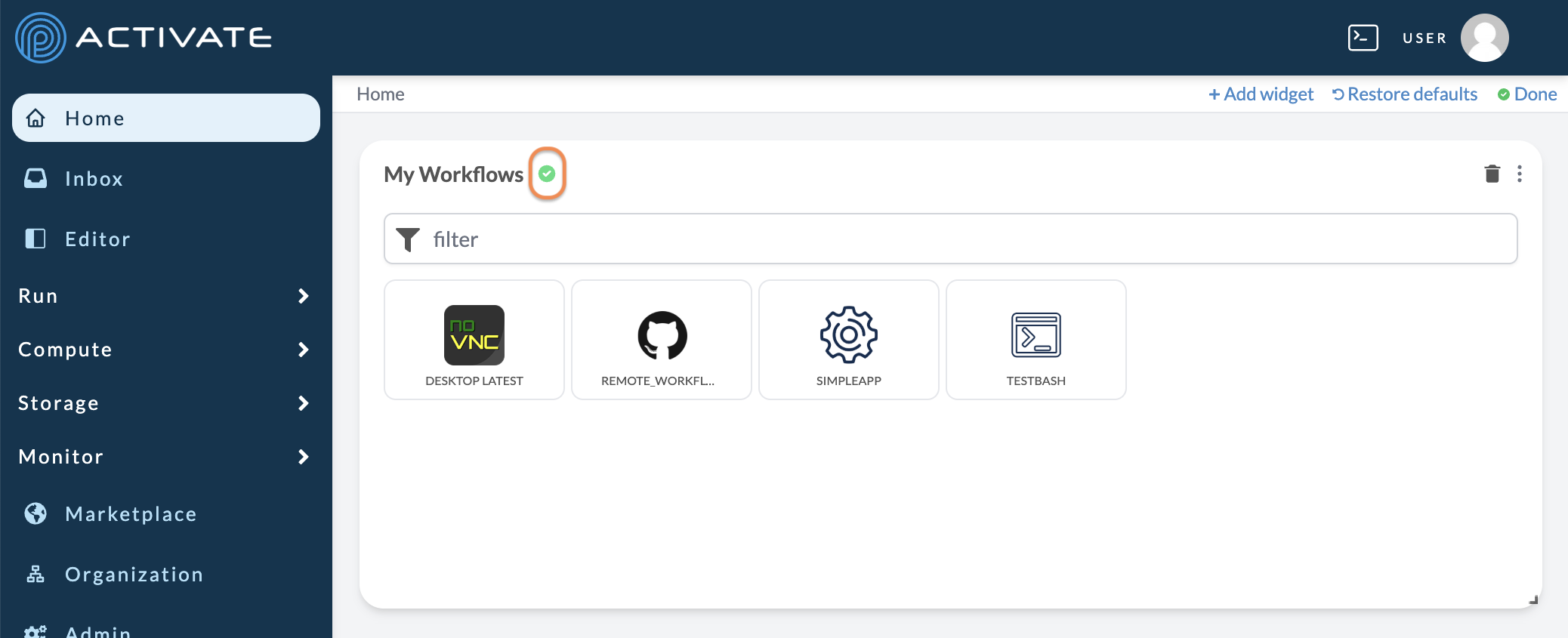
Add Modules
Click + Add Widget.
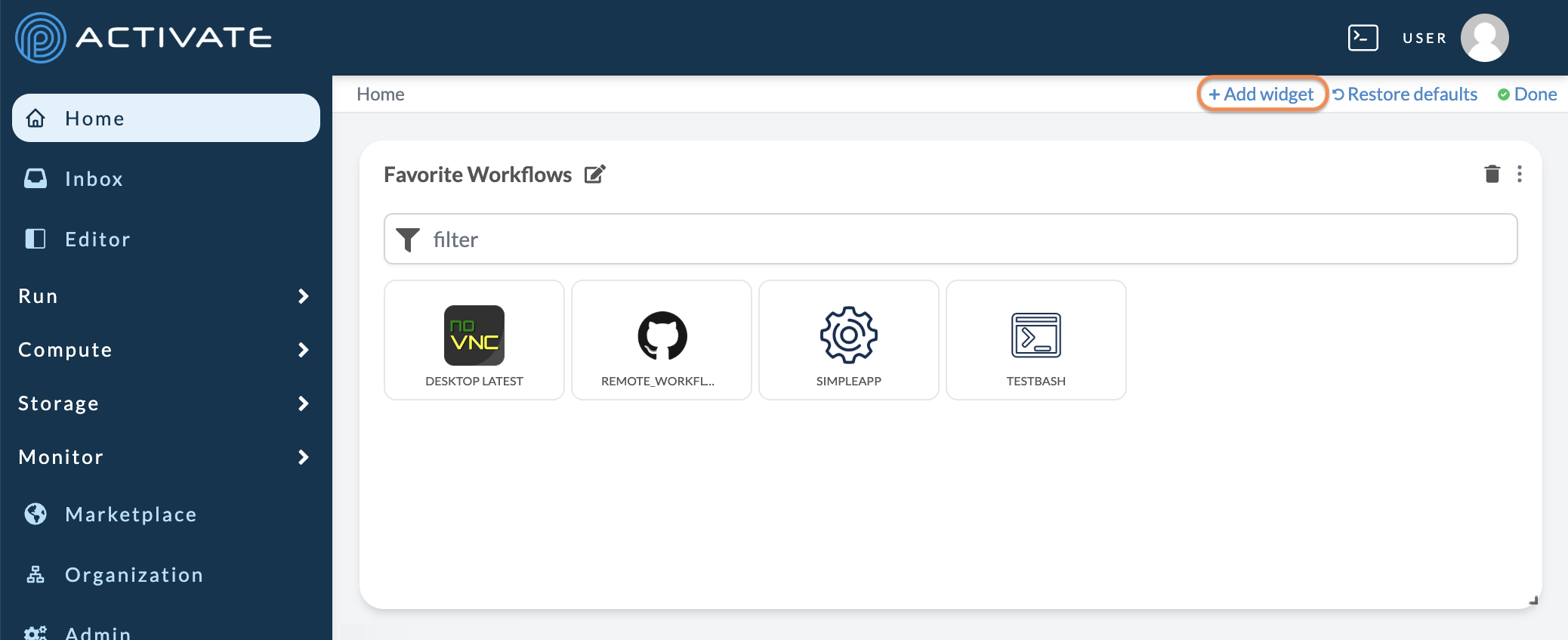
A panel will appear with the available modules. Click, drag, and drop a module into the grid to add it.
Delete Modules
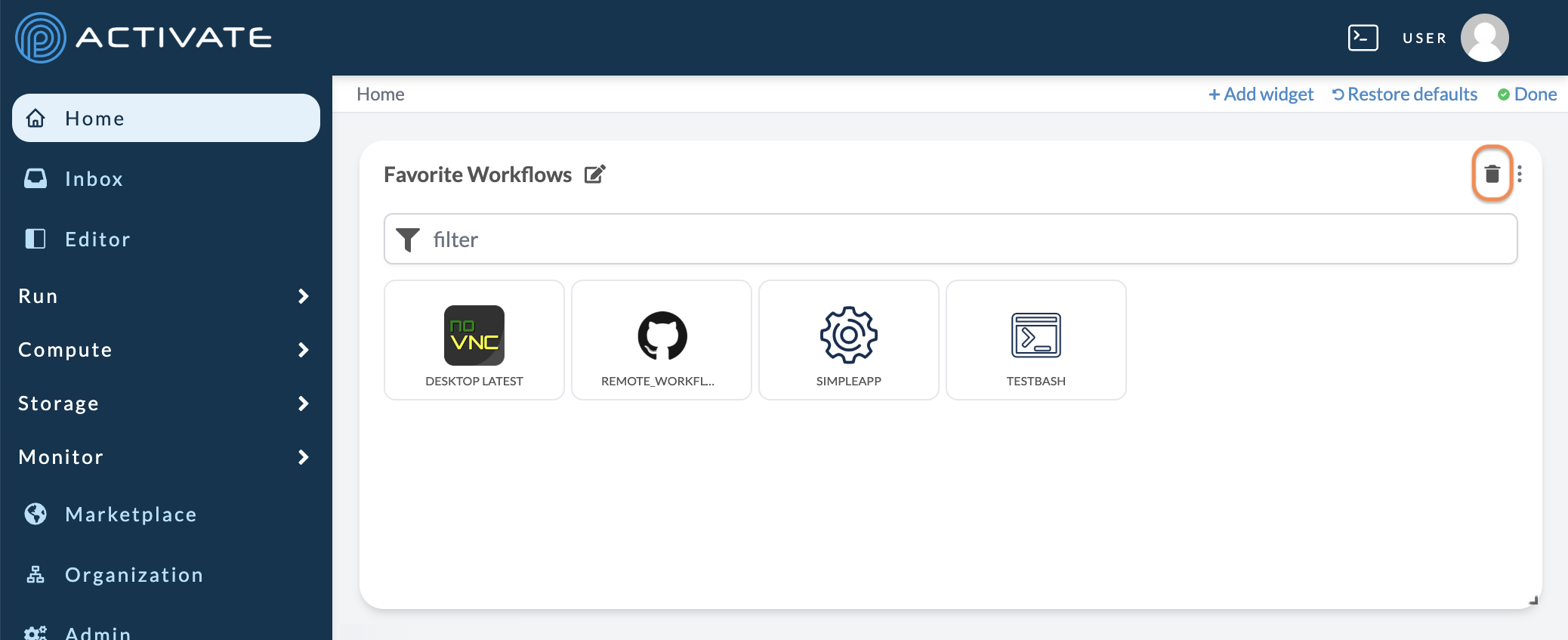
Click the delete icon.
Filter Data
Some modules allow for further customization. Click the menu icon.
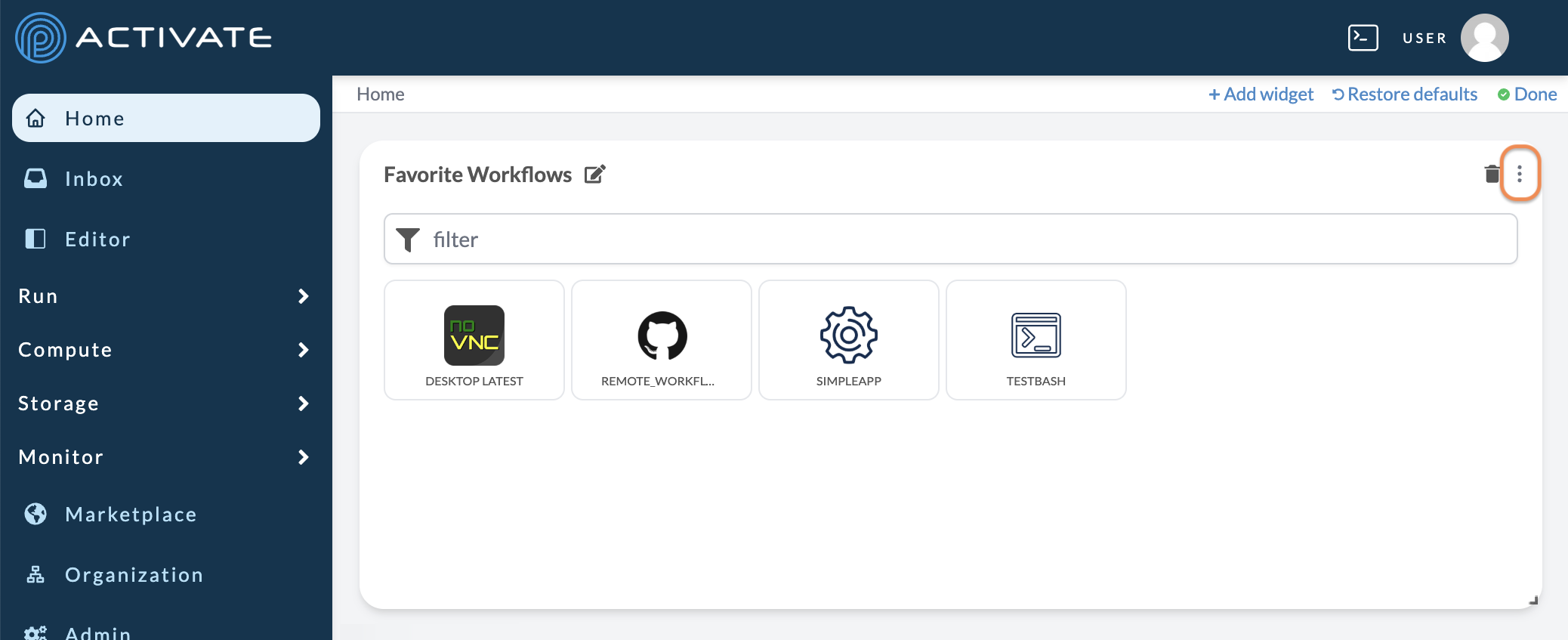
The available options will depend on the module. For example, some modules allow filtering the data they display.
After making your changes, click the menu icon again.
Restore Defaults
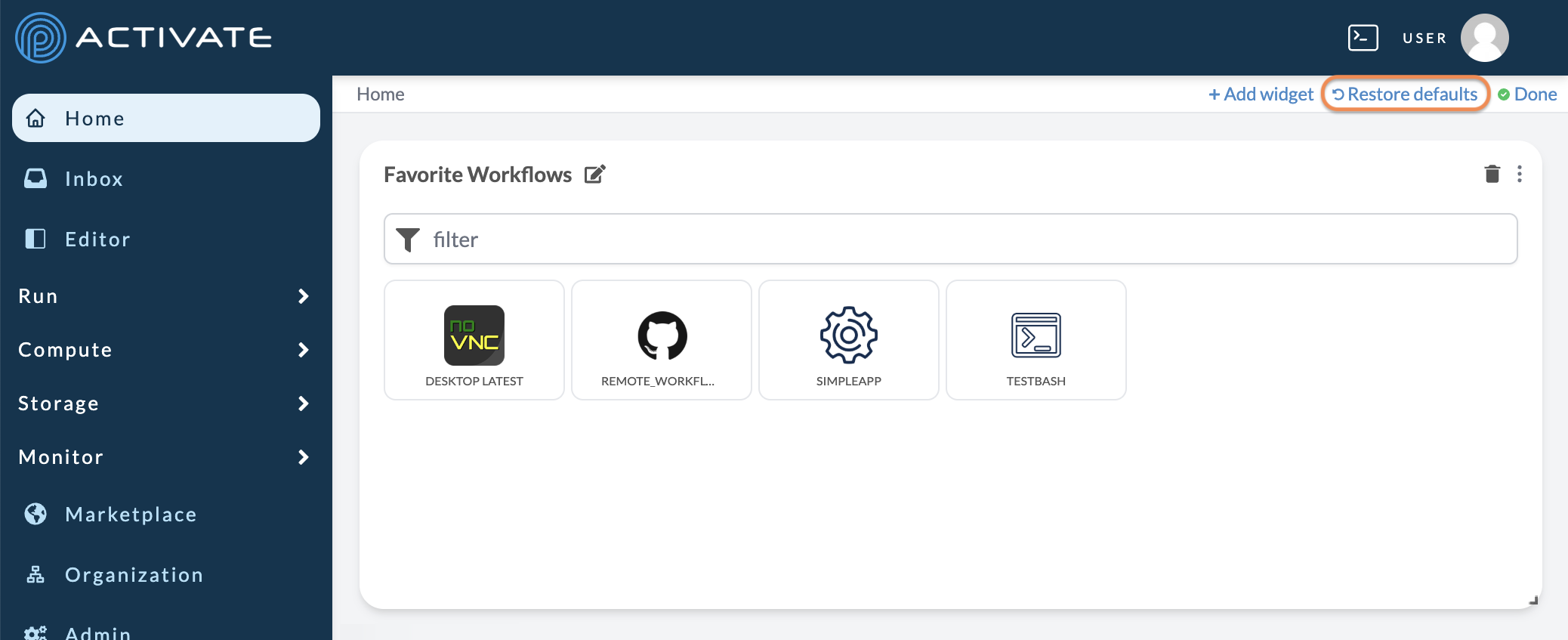
If you want to revert your changes, click ** Restore defaults**.
Save Changes
When you're done making changes, click ** Done**.
Customizing the Sidebar
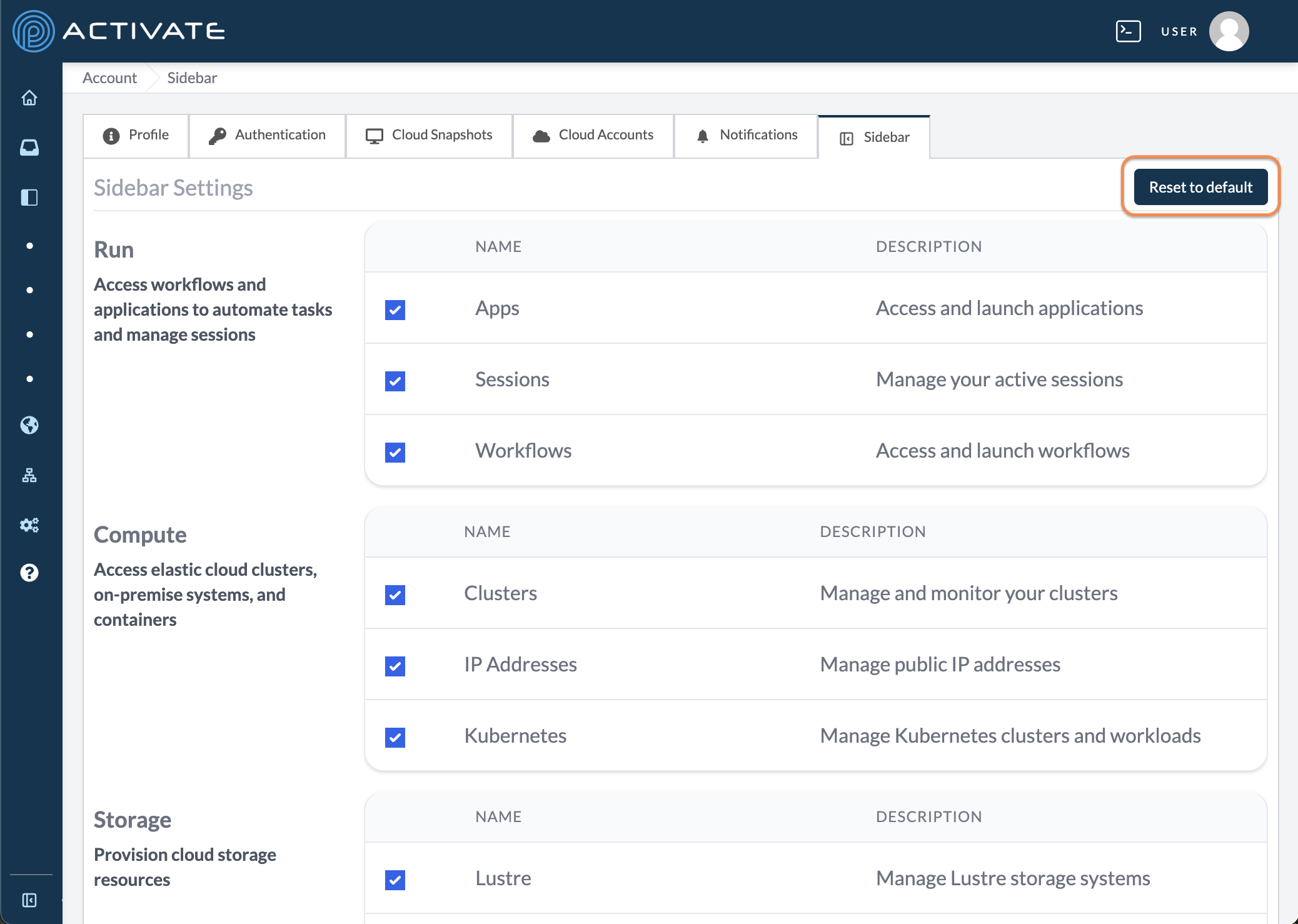
At the bottom of the sidebar, click the gear icon. Alternatively, navigate to Account > Sidebar.
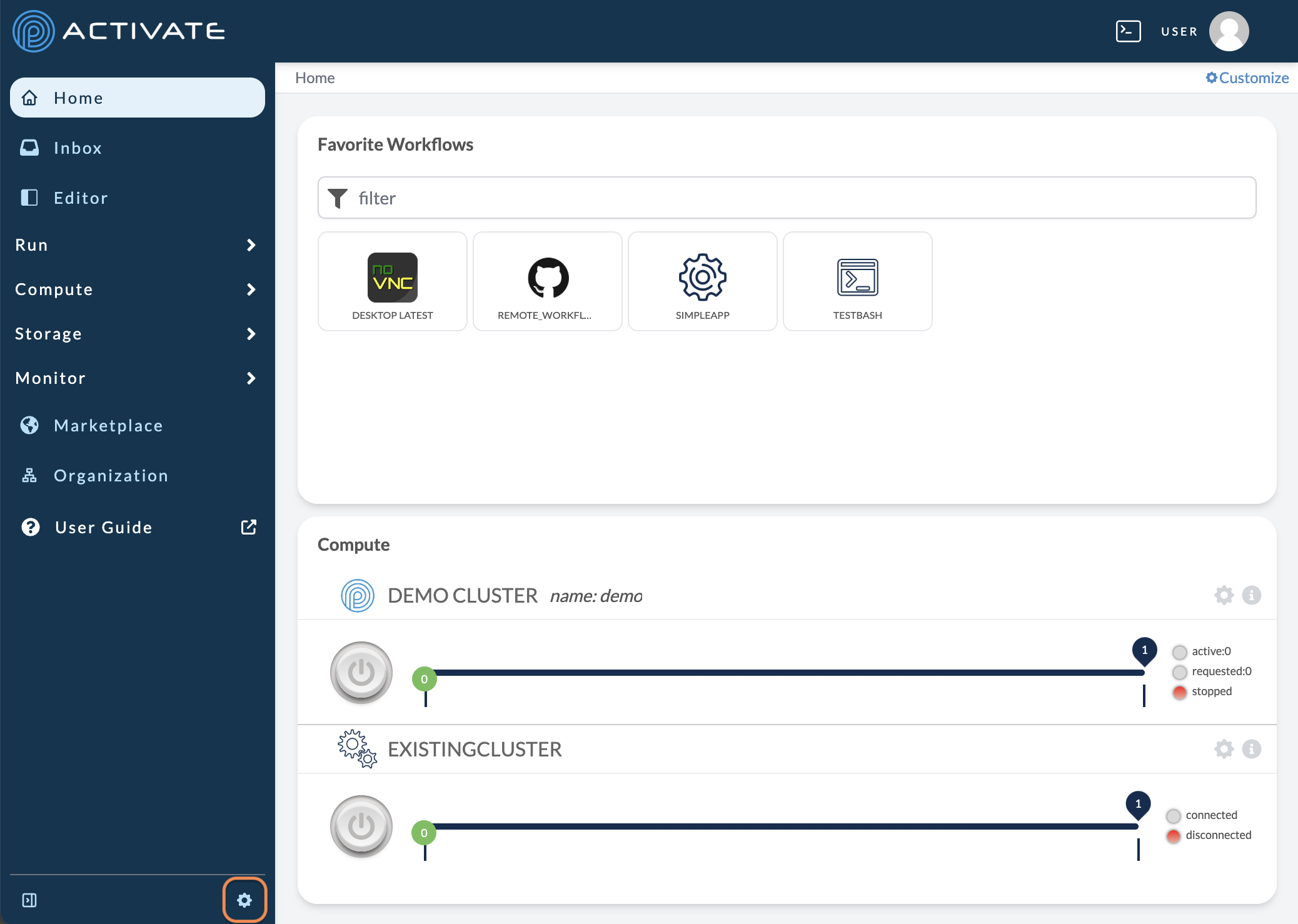
In Sidebar Settings, you can uncheck boxes to remove items. Click Reset to default to undo your changes.
Note
Please note that your administrator can remove items from the default sidebar's options. You may not have access to all of the items in the screenshot above.