
Terminal
ACTIVATE provides a built-in terminal that you can use while navigating the platform. The terminal gives you command-line access to your user workspace and allows you to run PW CLI commands, manage files, and connect to clusters.
Opening the Terminal
Click the terminal icon in the top navigation bar to open a pop-up terminal at the bottom of your screen.
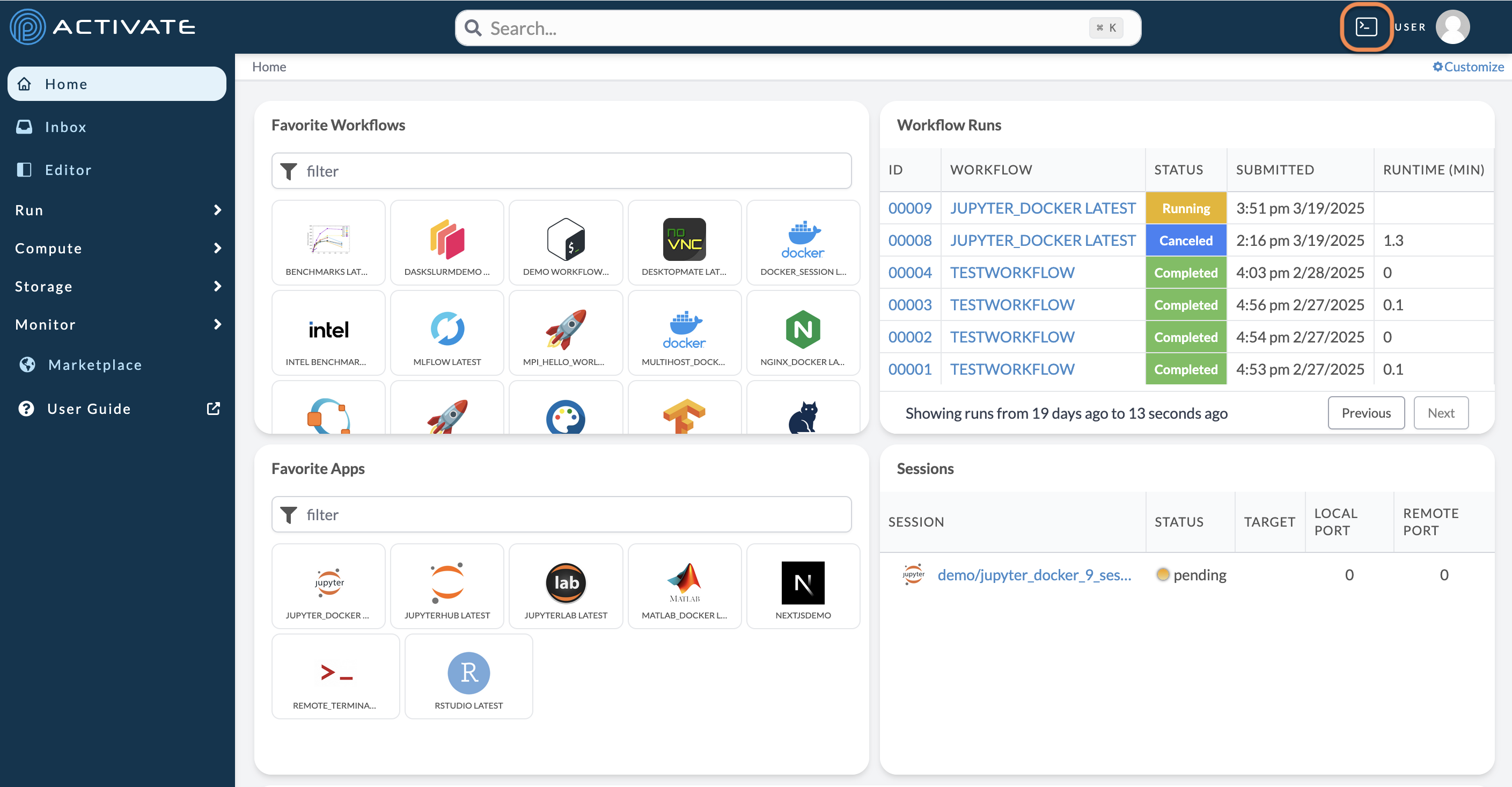
A terminal will appear at the bottom of your screen.
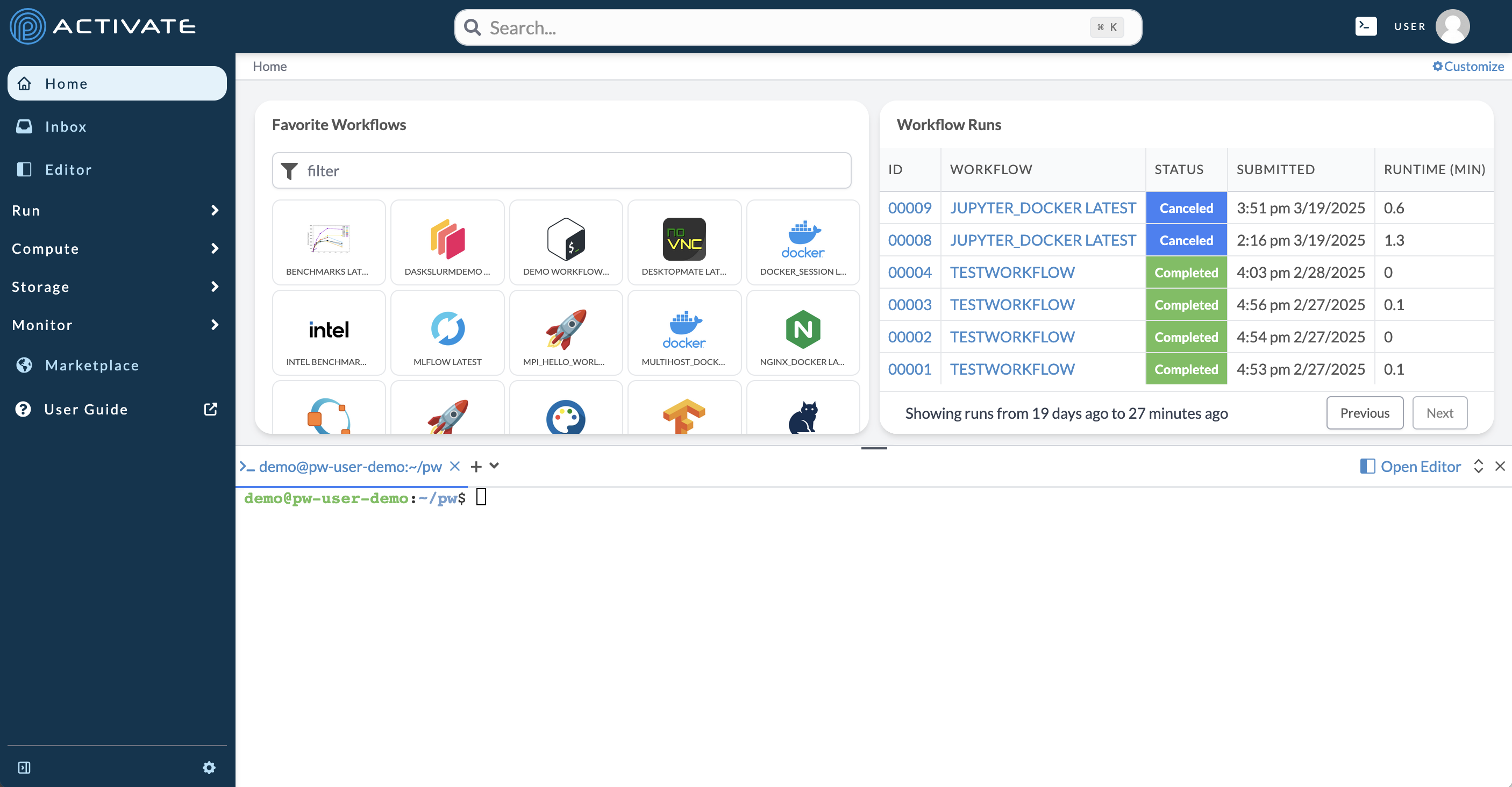
The terminal remains visible as you navigate between different pages in ACTIVATE.
Closing the Terminal
Click the terminal icon again to close the terminal. Your terminal session remains active in the background.
Using the Terminal
Your Workspace
When you open the terminal, you're in your user workspace where you can:
- Create and edit files
- Install software and packages
- Run scripts
- Access the PW CLI
Running PW CLI Commands
The PW CLI is pre-installed in your workspace:
# List your clusters
pw cluster ls

# List your workflows
pw workflow ls

# List your buckets
pw buckets ls
Connecting to Clusters
Use SSH to connect to a running cluster:
pw ssh my-cluster-nameTo exit the SSH session:
exitTerminal Features
Multiple Tabs
Open multiple terminal tabs for different tasks:
- Click the + button next to existing tabs
- Click between tabs to switch sessions
- Click x to close a tab
Resizing
Drag the top edge of the terminal panel to resize it.
Keyboard Shortcuts
| Action | Shortcut |
|---|---|
| Clear screen | Ctrl+L |
| Cancel command | Ctrl+C |
| Search history | Ctrl+R |
| Move to line start | Ctrl+A |
| Move to line end | Ctrl+E |
Tips
- Use up/down arrows to navigate command history
- Press Tab for auto-completion
- Use Ctrl+C/Ctrl+V (or Cmd+C/Cmd+V) for copy/paste
Related Documentation
- CLI Reference - Complete CLI documentation
- Editor - IDE with integrated terminal