
Dashboard
When you log in to ACTIVATE, you'll see the Dashboard by default. The Dashboard serves as your central hub for monitoring and managing your work.
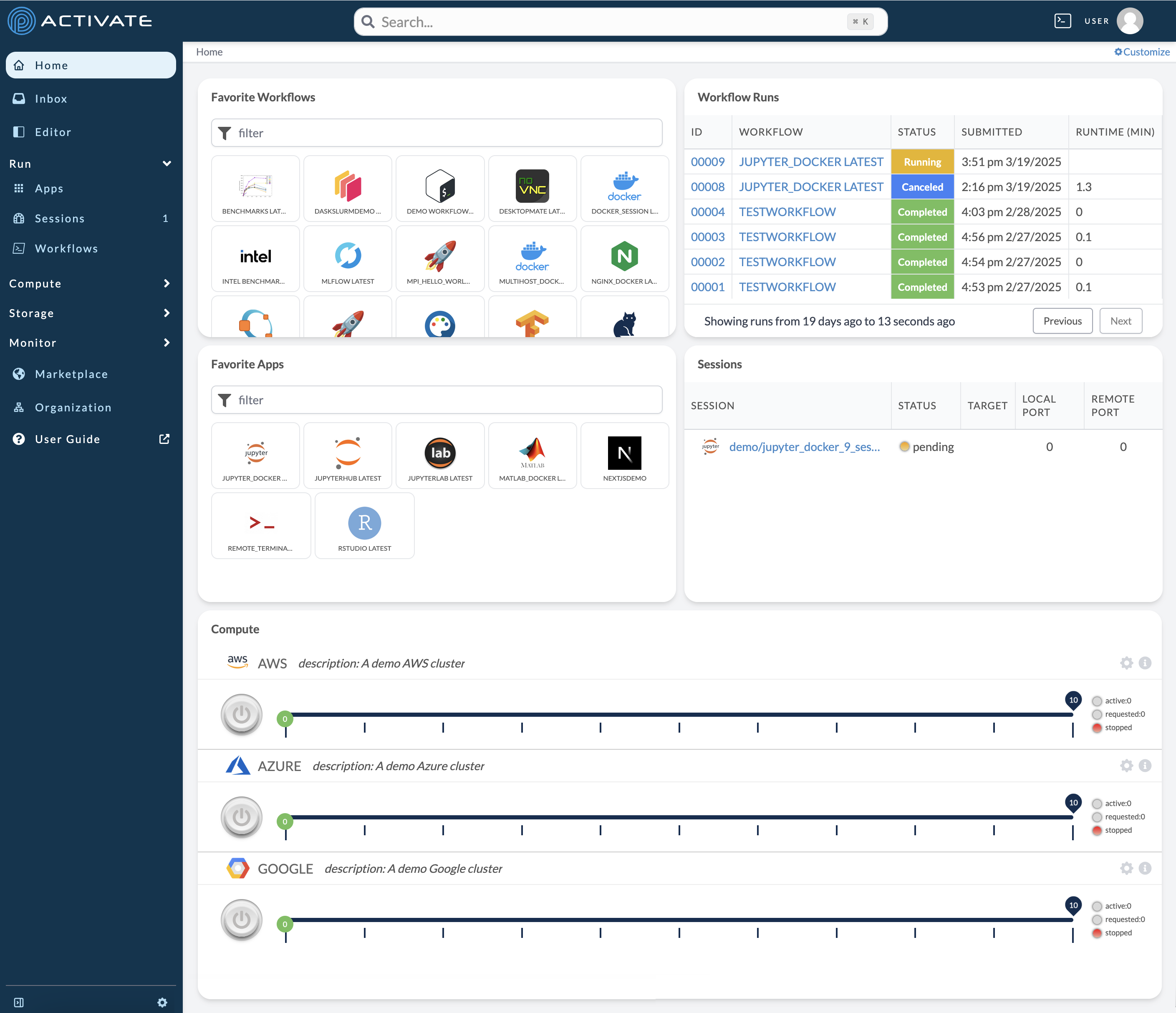
Overview
The Dashboard displays customizable widgets that give you quick access to your most important resources and activities. You can:
- View and run your favorite workflows
- Monitor workflow runs and their status
- Access running sessions
- Start and stop clusters
- Track recent activity
Default Widgets
The Dashboard includes five default widgets:
Favorite Workflows
Click a workflow to run or configure it. Add workflows to your favorites from the Workflows page for quick access.
Workflow Runs
Track current and past workflow runs. From here you can:
- View run status and progress
- Cancel running workflows
- Re-run completed workflows
- Access run logs and output
Sessions
Monitor active workflow sessions. Click a session to connect to it.
Compute
View and manage your favorited clusters:
- Start or stop clusters
- Configure cluster settings
- Click a resource name to collapse or expand it
Customizing Your Dashboard
You can personalize the Dashboard to show the information most relevant to you:
- Add widgets: Click the widget selector to add new widgets
- Remove widgets: Click the close button on widgets you don't need
- Rearrange widgets: Drag and drop widgets to reorder them
- Resize widgets: Drag widget edges to resize
For detailed customization instructions, see Customizing Layouts.
Quick Actions
From the Dashboard, you can quickly:
- Run a workflow: Click a favorite workflow
- Start a cluster: Click start on a favorite cluster
- Open a session: Click an active session
- View details: Click any item to see more information
Related Documentation
- Customizing Layouts - Personalize your workspace
- Running Workflows - Learn about workflows
- Creating Clusters - Set up compute resources