
Editor
The Editor provides a full-featured integrated development environment (IDE) within ACTIVATE. Based on Theia, it offers a familiar VS Code-like experience for editing files, writing code, and debugging workflows.
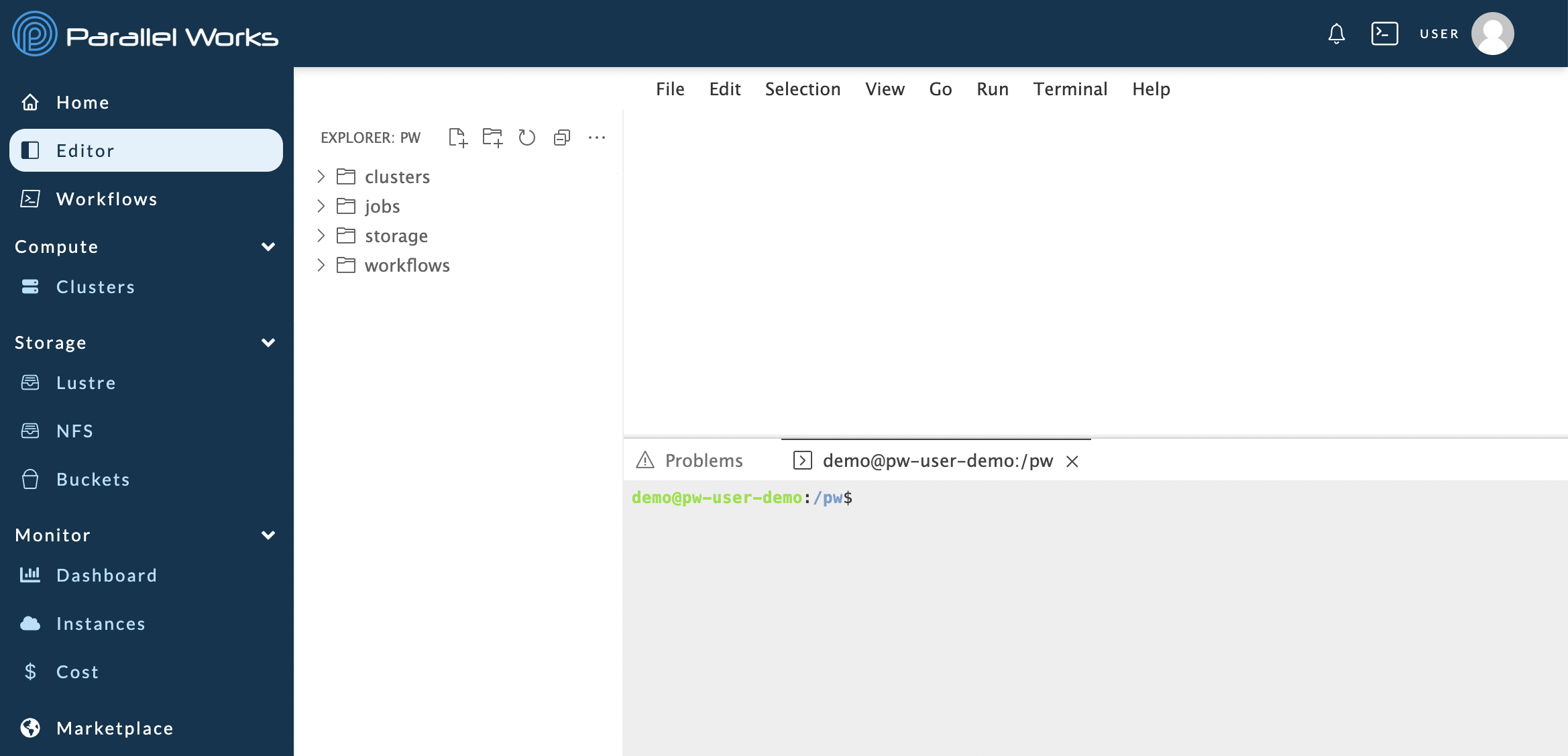
Opening the Editor
Click Editor in the sidebar navigation to open the IDE.
Interface Overview
The Editor interface consists of several key areas:
Activity Bar (Left)
The vertical bar provides access to different views:
- Explorer: File and folder navigation
- Search: Find text across files
- Source Control: Git integration
- Extensions: Manage extensions
Sidebar
Shows content for the selected activity (files, search results, git status).
Editor Area (Center)
The main area where you edit files:
- Open multiple files in tabs
- Split the editor for side-by-side viewing
- Syntax highlighting for many languages
Panel (Bottom)
Contains terminal, problems, output, and debug console.
Status Bar
Shows current file information and editor state.
Working with Files
Opening Files
- From Explorer: Click a file in the file tree
- Quick Open: Press
Ctrl+P(orCmd+Pon macOS) - From Terminal: Use
code filename
Creating Files
- Right-click in the Explorer
- Select New File
- Enter the filename and press Enter
Saving Files
- Save:
Ctrl+S(orCmd+S) - Save All:
Ctrl+K S(orCmd+K S)
Code Editing Features
Syntax Highlighting
The Editor supports many languages including Python, JavaScript, YAML, JSON, Bash, and more.
IntelliSense
- Type to see suggestions
- Press
Ctrl+Spaceto trigger suggestions - Press
TaborEnterto accept
Find and Replace
- Find:
Ctrl+F - Replace:
Ctrl+H - Find in Files:
Ctrl+Shift+F
Integrated Terminal
Press Ctrl+` to open the integrated terminal, or select Terminal > New Terminal.
The terminal gives you command-line access for:
- Running scripts
- Using the PW CLI
- Managing files
- Connecting to clusters
Keyboard Shortcuts
| Action | Windows/Linux | macOS |
|---|---|---|
| Command Palette | Ctrl+Shift+P | Cmd+Shift+P |
| Quick Open | Ctrl+P | Cmd+P |
| Save | Ctrl+S | Cmd+S |
| Find | Ctrl+F | Cmd+F |
| Toggle Terminal | Ctrl+` | Cmd+` |
| Go to Line | Ctrl+G | Cmd+G |
Related Documentation
- Terminal - Command-line access
- Explorer - File browser
- Building Workflows - Workflow development